
Congratulations — you found Crispip
Two clicks and a video is floating in its own window. Here is the whole flow.
-
Pin Crispip to the toolbar
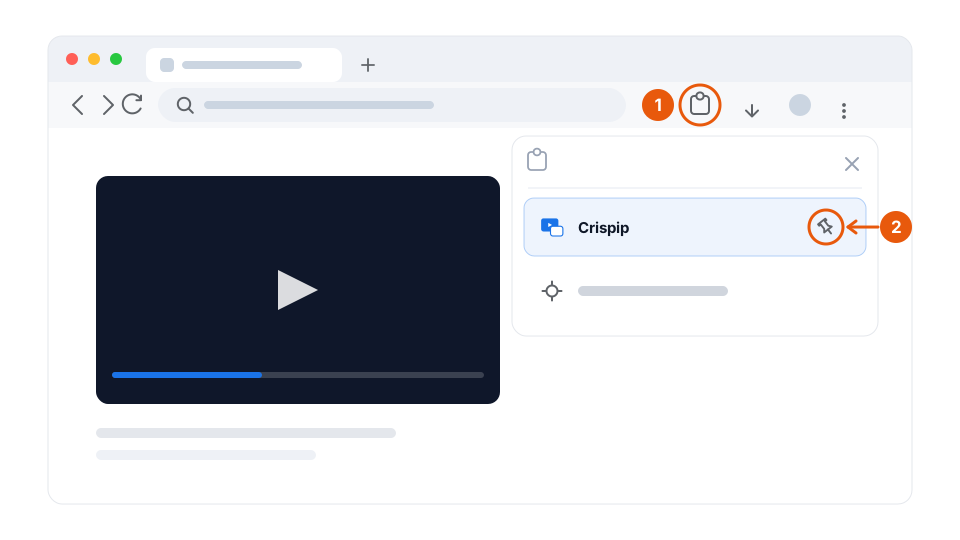
Click the puzzle-piece icon at the right of Chrome’s address bar, then the pin next to Crispip. The icon stays on the toolbar from then on — one click away, instead of buried in the extensions menu.
-
Click the icon on a page with a video
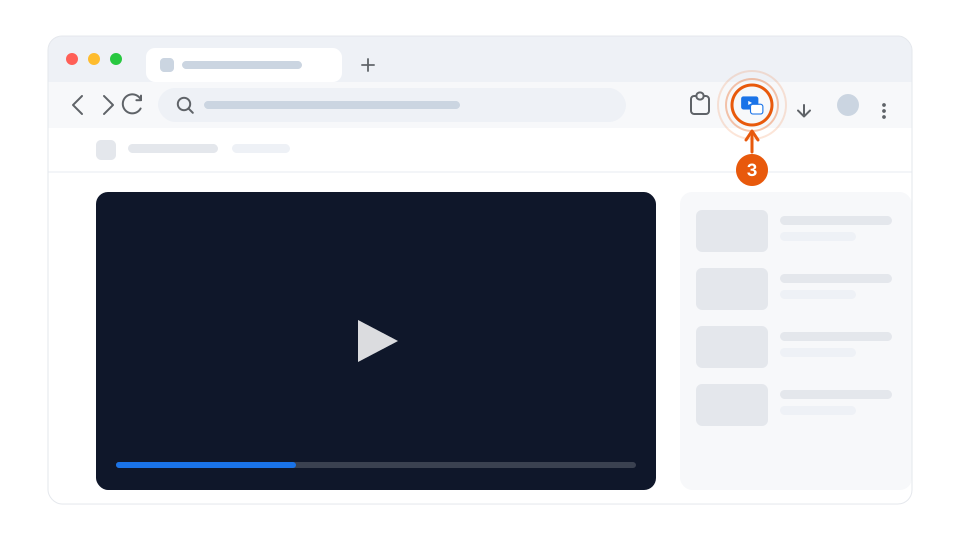
Start a video, then click the Crispip icon. The player pops out into a floating window that stays on top. There is nothing to set up first.
-
Drag it anywhere, or fill the screen
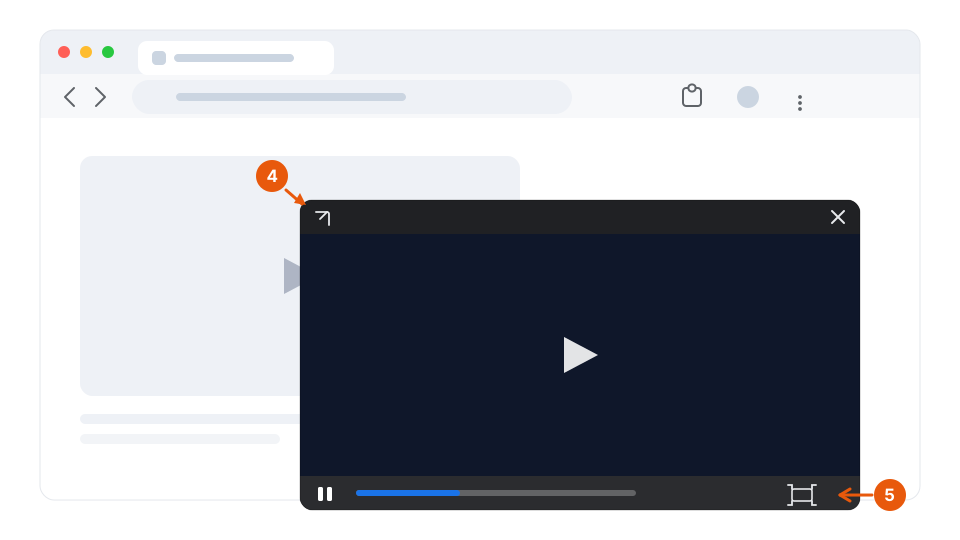
Drag the window by its top bar to any corner of the screen. The button at the bottom right fills it edge to edge; the arrow at the top left takes you back to the tab the video came from.
Want several videos at once?
Multi-video mode gathers every video you pull out into a single panel, where you can maximise any of them and pause or close them one by one. It comes with the paid licence — the free plan does single-video picture-in-picture, forever. Screenshot, recording and cinema mode live here too.
Stuck on something?
Activation, device limits, refunds, and what happens when you cancel are all covered in the FAQ.