
You’re set up — now cover what matters
One keystroke and the part you would rather not show is gone. Here is the whole flow.
-
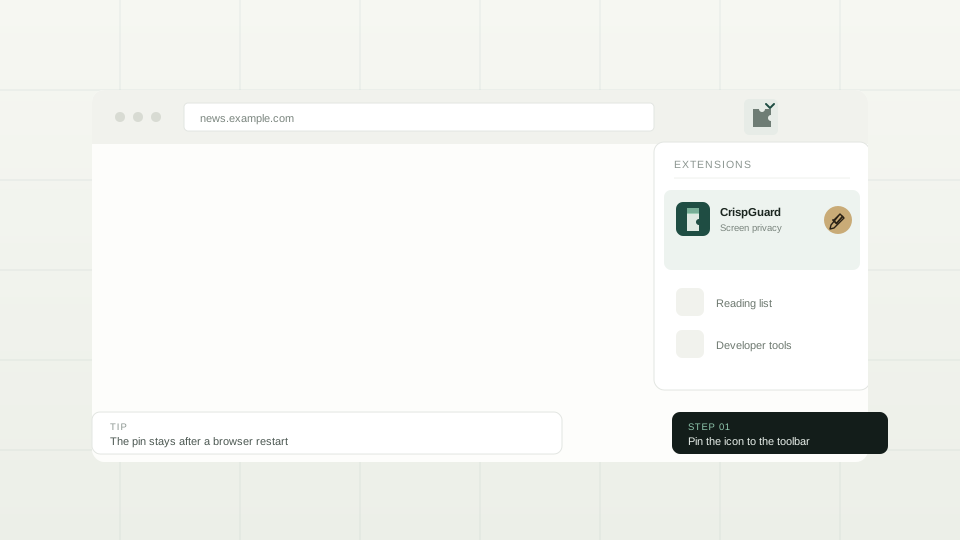
Pin CrispGuard to the toolbar
Click the puzzle-piece icon at the right of Chrome’s address bar, then the pin next to CrispGuard. The icon stays on the toolbar from then on — one click away, instead of buried in the extensions menu.
-
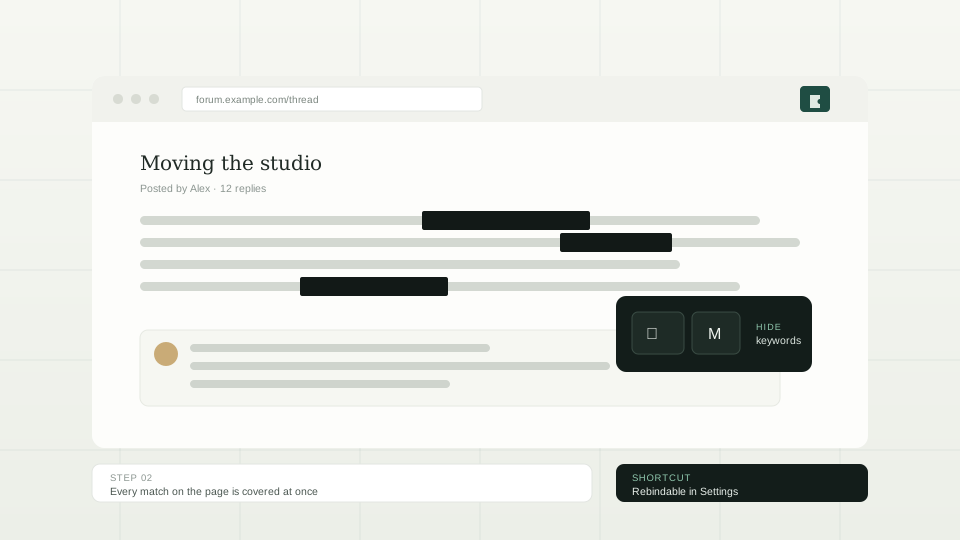
Press the shortcut for what you want to hide
Keywords, images, areas, spotlight, blur and the translucent veil each have their own shortcut, and all of them can be rebound in the popup (click the CrispGuard icon). The cover appears immediately; nothing on the page is rewritten.
-
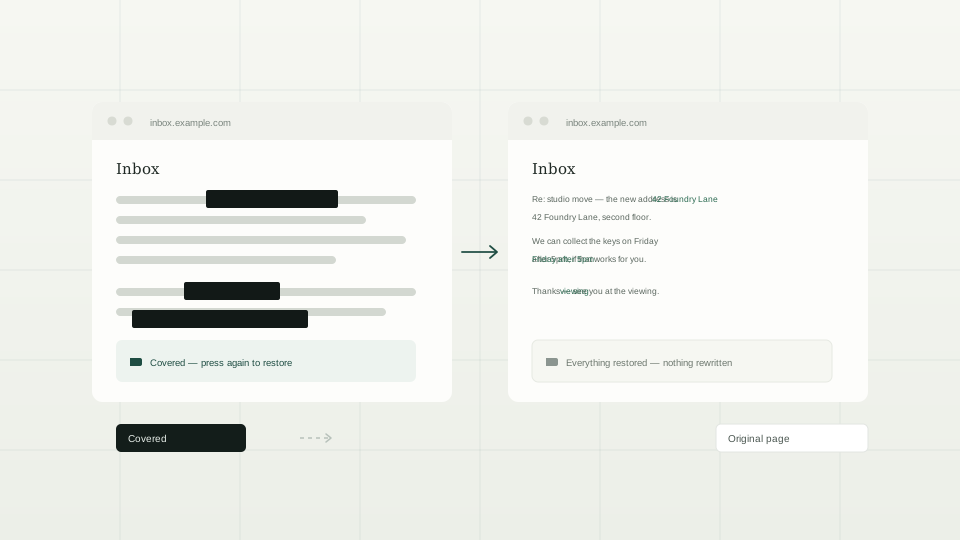
Press it again to uncover
The same shortcut removes the cover and restores everything it hid. Want it to happen automatically? Switch the popup to Auto and add the domain from the gear icon next to it — the page will open already covered next time.
Want it to happen on its own?
The free plan remembers one site. PRO removes that limit, adds exception paths so a section such as /admin stays readable, and unlocks seven placeholder styles, a 6-digit site lock and the camera sentry.
Stuck on something?
Activation, device limits, refunds, and what happens when you cancel are all covered in the FAQ.